Your Joynit calendar is displayed on your site through a secure iframe. You copy one embed code, paste it into any page, and your events appear live, in your layout, with no redirect to Joynit. It works with WordPress, Wix, Squarespace, Webflow, Jimdo or a custom site: wherever you can paste an HTML block, the calendar works, with nothing to install and no developer needed.
You add, move or cancel events in Joynit, and the embedded calendar updates on its own. Your Events page stops going stale, and nobody re-enters anything on the website.
The plugin is included in every plan, free plan included. Visitors can open an event and sign up right from your page, with no account, and you see who’s coming in Joynit.

Create a shared calendar on Joynit. Then, in your admin area, click the settings menu and select "Embed on your website" to access the plugin setup.
Adjust the display settings — size, language, view format — to match your website's design.
Paste the generated code into any HTML block on your site. No developer needed in most cases.
Multiple views and display options are available.
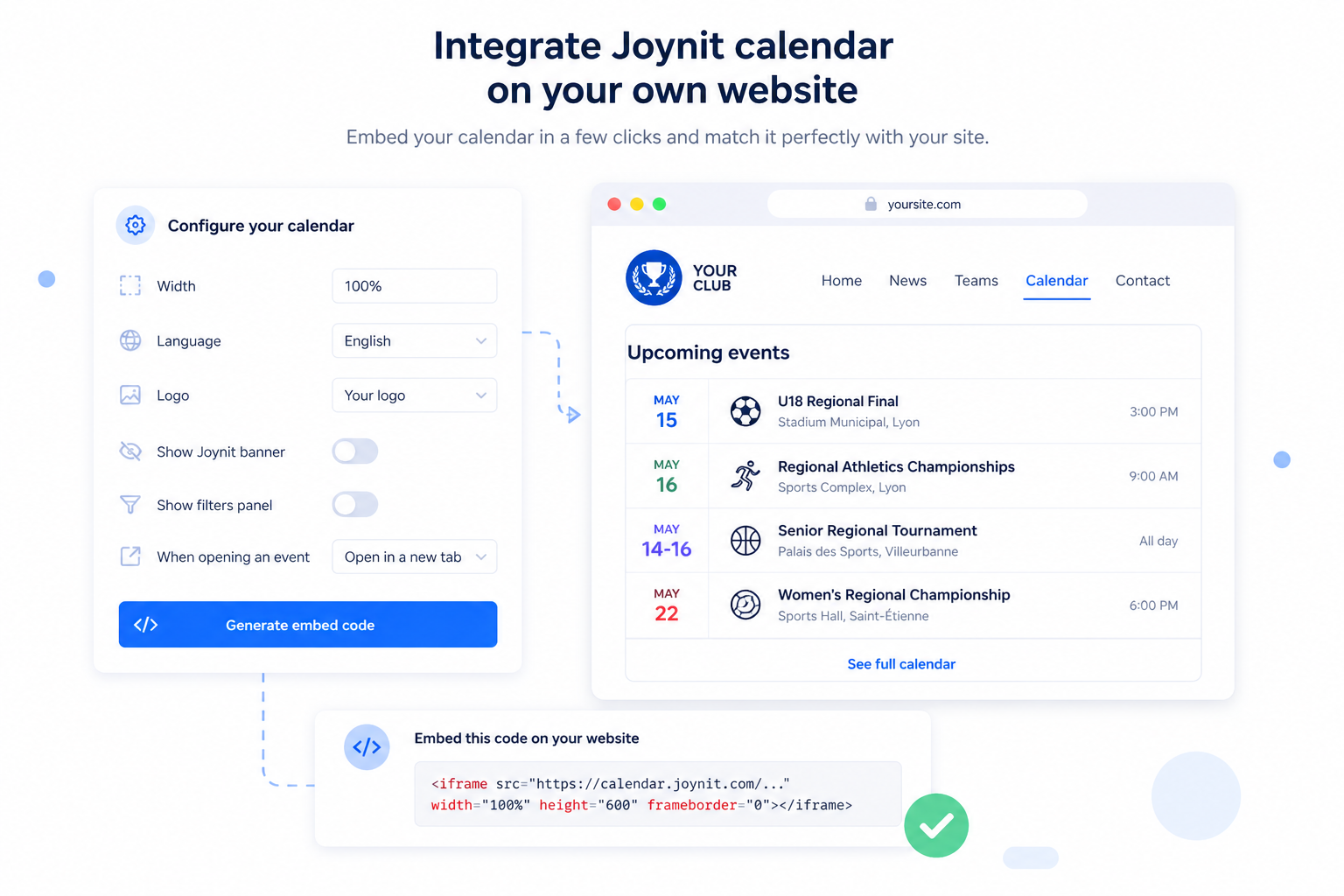
The Joynit calendar plugin gives you full control over how your calendar looks and behaves on your site — no matter the platform.
From the settings interface, you can adjust:
Dimensions — set the width to fit your layout
Language — display the calendar in the right language for your audience
Display format — choose between calendar view, list view, or carousel
Joynit branding — hide the Joynit banner for a seamless experience
Your own logo — add your logo directly to the embedded calendar

The embedded calendar follows the same security rules as your Joynit account. You choose who can see it — and change that at any time without touching the code on your website.
Your access options:
Public — anyone visiting your site can view the calendar
Restricted — limit access to specific members or user groups
Protected — secure the calendar with an access code
Any change made in Joynit is instantly reflected on your embedded calendar. No manual update, no re-publishing, no code change needed.

Get help installing the Joynit calendar plugin on your website. Book a demo.